How to Digitize Your Vinyl Collection for Backup
Digitizing vinyl is not about replacing the record. It is about creating a reliable backup that preserves the sound of your particular copy, including a rare mix, inherited pressing, live bootleg, or album that never received a good digital release. The process is straightforward once you separate it into four jobs: prepare the record, capture the signal cleanly, create sensible files, and back them up properly.
For collectors, the best approach is to keep one high-quality preservation master and make smaller listening copies from it. That mirrors guidance from the National Archives, which distinguishes a high-quality preservation copy from an easy-to-play access copy [1].
1. Build the correct signal chain
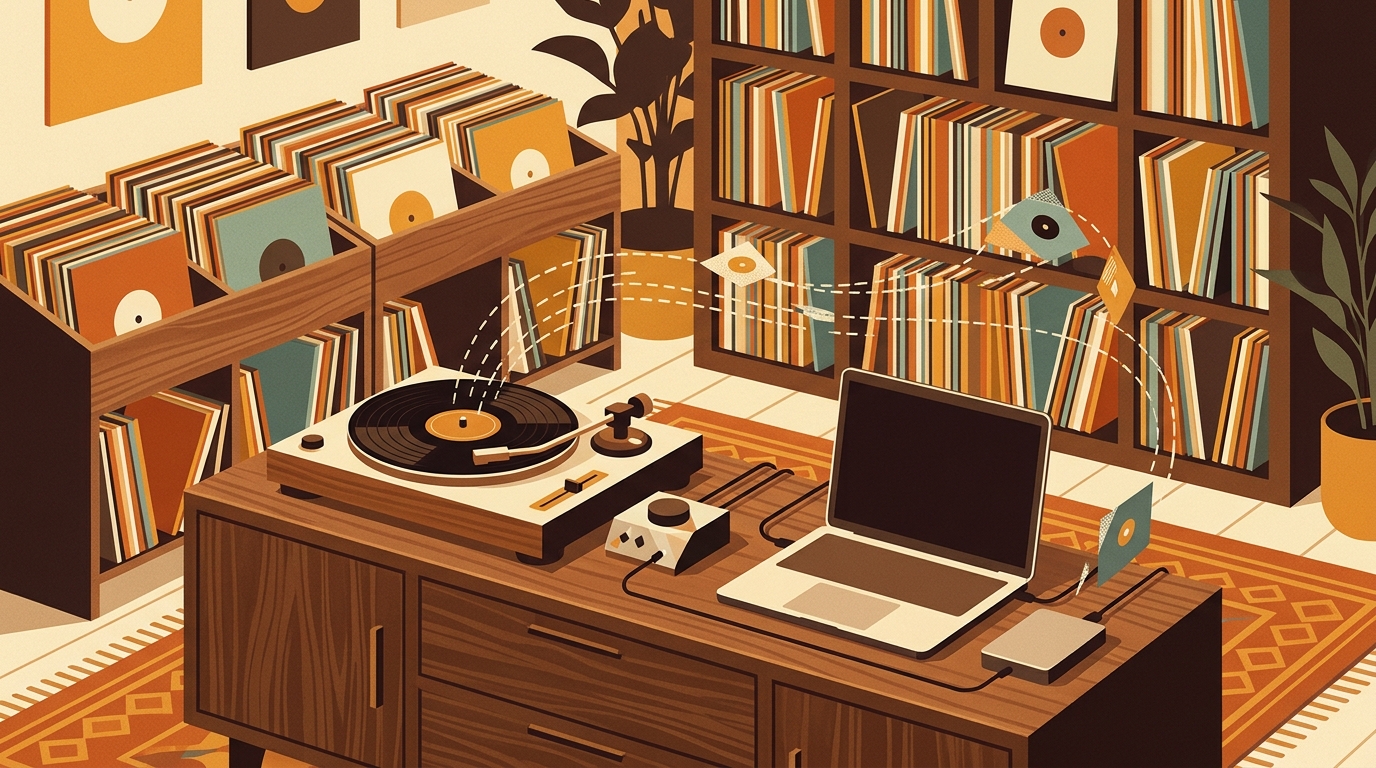
A standard setup is turntable to phono preamp to audio interface to computer. The phono preamp is essential because a cartridge produces a very low-level signal that also needs RIAA equalization. If your turntable has a built-in preamp, use its line output. A USB turntable sends digital audio directly to the computer, although the quality of its built-in converter varies.
Avoid connecting a phono-level output directly to a laptop microphone jack. The gain, impedance, and equalization are wrong, and the result may be quiet, noisy, or tonally thin. An external audio interface with proper line inputs gives you level controls, reliable stereo capture, and a cleaner analog-to-digital conversion path.
2. Clean the record before you record it
Dust becomes clicks, so cleaning is the cheapest restoration tool you have. Use a carbon-fiber brush for loose debris and a proper wet-cleaning method for grimier records. Inspect the stylus too. The Library of Congress notes that almost all items it transfers require some cleaning, using methods that include solvents and vacuuming [2].
Do a short test recording before capturing a full side. Play the loudest passage you can find and set the input so peaks remain safely below 0 dBFS. Aim for roughly -12 to -6 dBFS on the loudest peaks. Extra headroom is harmless at 24-bit depth; digital clipping is not.
3. Record a high-resolution master
For a serious backup, record stereo PCM at 24-bit, 96 kHz if your interface and storage allow it. The Library of Congress transfers recordings to 96 kHz, 24-bit Broadcast WAV, while the National Archives encourages 24-bit depth and 96 kHz sampling for digitized audio [2] [3]. This does not magically add detail that is absent from the groove, but it provides generous headroom and a robust master for future processing.
If disk space is tight, 24-bit, 48 kHz is a practical home standard. A 45-minute stereo album uses about 1.56 GB as uncompressed 24/96 PCM, about 778 MB at 24/48, or 476 MB at CD-quality 16/44.1. Record each side continuously. Do not stop between tracks, because a continuous side preserves fades, ambience, and the exact timing between songs.
4. Preserve the raw capture before editing
Export the untouched recording first. Use WAV or Broadcast WAV for maximum compatibility, or FLAC for lossless compression and easier metadata. The National Archives lists WAV, Broadcast WAV, AIFF, and FLAC among acceptable digital audio formats, and recommends uncompressed WAV-PCM for digitization [4].
Name files consistently, such as Artist_Album_Year_Pressing_SideA_24-96.wav. Add notes for the catalog number, pressing country, cartridge, preamp, interface, recording date, and any visible damage. If the sound later seems unusual, those details help explain the capture.
5. Edit a working copy, not the master
Duplicate the raw file before trimming silence, splitting tracks, or repairing clicks. Audacity provides a detailed LP digitization workflow that includes subsonic filtering, click removal, normalization, track labels, and export [5].
Be conservative. Aggressive noise reduction can remove cymbal decay, room ambience, and other musical detail along with surface noise. Audacity warns that setting Click Removal too low can create false detections and damage audio [6]. Repair obvious defects, listen on headphones, and compare the result with the raw capture. Leave the natural character of the pressing intact.
6. Create listening copies
From the edited lossless file, export FLAC or Apple Lossless for your music library. Create MP3 or AAC copies only when device compatibility or storage matters. Keep album title, artist, track number, year, artwork, catalog number, and pressing notes in the metadata. What's Spinning can help you keep the physical record and its listening history organized, while the filenames and tags keep the digital backup understandable outside any one app.
7. Use a real backup strategy
One external drive is not a backup plan. Follow the 3-2-1 rule: keep three copies, use two different storage types, and store one copy offsite. CISA describes the same model for protecting important data [7]. A practical setup is the working copy on your computer, a second copy on an external drive, and an encrypted offsite or cloud copy.
After copying, open a few files from each destination and test them. For larger collections, generate checksums so you can detect silent corruption later. The National Archives specifically notes that checksums help verify that data has not changed over time [1]. Recheck drives annually and migrate the archive when hardware or file systems become obsolete.
A repeatable vinyl digitizing checklist
- Clean the record and stylus.
- Connect the turntable through a phono preamp and audio interface.
- Set levels with the loudest passage and leave headroom.
- Capture each side continuously at 24-bit depth.
- Save an untouched lossless master.
- Edit only a duplicate, then export tagged listening files.
- Maintain three copies, including one offsite.
The first album may take an evening while you learn the workflow. By the fifth, it becomes routine. Start with records that are irreplaceable, unavailable digitally, or personally meaningful. Those are the copies whose sound is worth preserving first.
FAQ
What is the best format for digitizing vinyl records?
Keep a lossless preservation master in WAV, Broadcast WAV, AIFF, or FLAC. WAV at 24-bit and 96 kHz is a strong archival choice. Create smaller MP3 or AAC copies only for convenient listening.
Do I need a USB turntable to digitize vinyl?
No. A conventional turntable can feed a phono preamp, then an audio interface or line input. A USB turntable simply combines more of that signal chain in one unit.
Should I remove every click and pop?
Not necessarily. Clean the record first, then make a raw capture. Apply click repair conservatively to a duplicate working file so you can always return to the untouched master.
How much storage does a vinyl backup require?
A 45-minute stereo album recorded as uncompressed 24-bit, 96 kHz PCM uses about 1.56 GB. FLAC usually reduces the size without discarding audio information, but the exact savings depend on the recording.
Sources
A spreadsheet tracks what you own. What's Spinning identifies what's playing.
On-device vinyl ID logs your listening history automatically. 7-day free trial.
Looking for Shazam for vinyl?
What's Spinning identifies what's playing on your turntable on-device, logs history, and AirPlays now-playing to your TV.
Comparing vinyl ID apps?
Analog requires Discogs and is iPhone-first (iPad coming). What's Spinning works without Discogs on iPhone and iPad with AirPlay.
Try What's Spinning Free
Turn your iPad into a live now-playing display. Track every record you spin.
START FREE TRIALThen $4.99/mo or $39.99/yr · Cancel anytime
Get it on your iPhone
Open on iPhone