Using QR Codes to Tag and Identify Vinyl Records
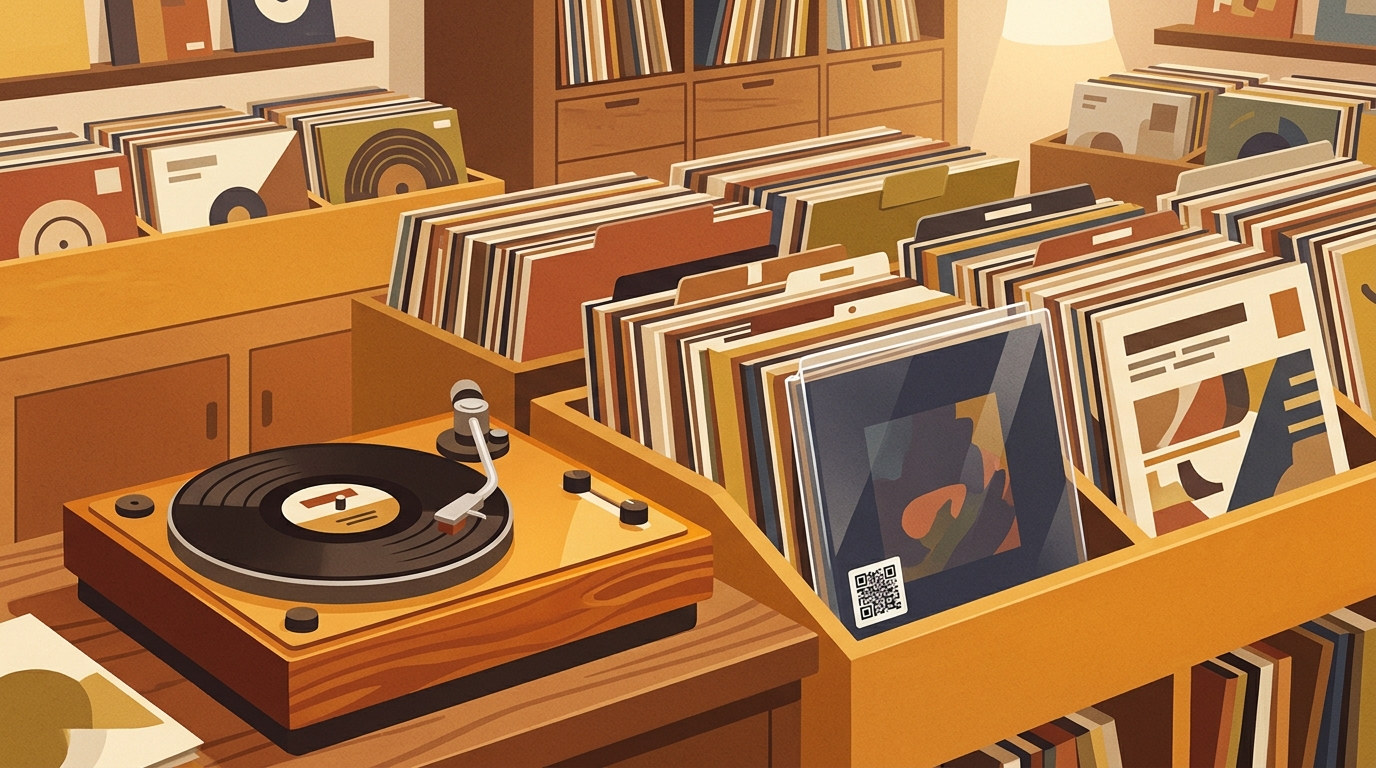
A QR code can connect an outer sleeve to the exact record in your collection database. Scan it to see the pressing, shelf location, condition, cleaning history, or playback notes before the record reaches the turntable. The code does not visually recognize the vinyl. It retrieves a record you previously associated with it.
This system works for 50 favorites, a DJ library, or thousands of records in numbered bins. QR Code was introduced by DENSO WAVE in 1994 and became an ISO standard in 2000.[1] Here is how to build a useful system without risking your records or jackets.
1. Give every physical copy a unique ID
Start with a short identifier for your copy, such as VIN-000184. Two copies of the same pressing need different IDs because their condition, history, or location may differ.
Create one row per copy in a spreadsheet or collection app. Useful fields include:
- Local ID
- Artist and title
- Label and catalog number
- Country, year, format, and color
- Barcode and matrix or runout markings
- Discogs release URL or another reference URL
- Media and sleeve condition
- Shelf, cube, crate, or bin location
- Last cleaned and cleaning method
- Playback notes, such as 45 RPM, mono, or a preferred stylus
At What's Spinning, the most useful record is the one that answers a question while your hands are occupied: Where does this go, what speed does it use, and is it ready to play?
2. Identify the exact pressing before linking it
Do not link every copy of an album to its broad master-release page. Discogs describes a master release as a folder that groups multiple versions, while each individual release represents a particular version.[2] A US reissue, a UK first pressing, and a colored anniversary edition may share a master page but require different collection records.
Compare the label, catalog number, barcode, country, format, and runout text. Discogs notes that matrix and runout information is commonly stamped or etched near the center and can contain manufacturer, studio, engineer, or job information.[3] Its guidance also says to have the exact release in hand.[4]
For example, two identical covers may hide different pressings. If Copy B has another barcode and names a different plant in the runout, it may require a separate release page. Save the matching individual release URL in each row.
3. Decide what the QR code should contain
Encode a short URL that opens your record page. It can lead to a private database, a simple page, or a redirect. A redirect lets you change the destination without printing a new code.
Avoid packing the full title, matrix, condition, and notes into the QR code itself. Dense codes have smaller modules and can be harder to print and scan reliably. DENSO WAVE recommends making modules as large as practical for the available space.[5] A short URL also lets you correct your data without changing the physical label.
If the collection is private, encode only the local ID or a non-public URL. Do not expose purchase prices, home storage details, or personal contact information through a publicly accessible page.
4. Generate and print a durable, readable label
Generate a standard black code on a white background. Leave the white border intact. The QR specification calls for a clear quiet zone four modules wide on every side.[6] Avoid decorative frames, low-contrast colors, or artwork that crowds the squares.
Error correction helps a code remain readable when part of it is dirty or damaged. The four standard levels restore approximately 7, 15, 25, or 30 percent of codewords, with higher correction producing a larger code for the same data.[7] Level M is a sensible starting point for clean indoor sleeves. Consider Q if labels will see frequent handling, then test the actual print.
Print a sample sheet first. Test with two phones under normal shelf lighting, at an angle, and through the sleeve material. If scanning hesitates, shorten the URL, enlarge the code, improve contrast, or use a sharper printer.
5. Put the label on a replaceable surface
Never stick the label to the vinyl, center label, or original jacket. The Canadian Conservation Institute warns that adhesives applied directly to collection objects can fail, become brittle or viscous, and leave difficult stains.[8] Put the QR label on a replaceable outer sleeve, an acid-free tag inside the outer sleeve, or a removable shelf divider.
Place it consistently, such as the lower-right corner on the back of every outer sleeve. Keep it away from the jacket opening so fingers do not scrape the code whenever the record is removed. The Library of Congress recommends handling grooved discs by the edges and label areas and storing them supported in sleeves.[9]
6. Use the scan in your listening routine
A useful QR workflow should save steps at the turntable. Scan before playing to confirm speed, mono or stereo presentation, cleaning status, and any cueing note. After listening, update play count, condition observations, or the date a wet cleaning was performed. When reshelving, scan again to confirm the location code.
For example, a scan might show: VIN-000184 | Shelf B3 | 45 RPM | mono | cleaned 2026-10-12 | light noise at start of Side B. That is more useful during a listening session than a link that opens only a generic album page.
Maintenance that keeps the system trustworthy
Back up the database, keep the local ID permanent, and audit a sample of labels every few months. If you use a hosted app, export the data periodically in CSV or another portable format. The physical code and the digital row form one system. A perfect label is useless if its destination disappears.
Frequently Asked Questions
Can a QR code identify an unknown vinyl record automatically?
Not by itself. A QR code returns data already encoded in it, usually a URL or local ID. First identify the pressing from the record's catalog number, barcode, label details, and runout markings, then connect that record to the code.
Should I put the QR sticker directly on the album cover?
No. Use a replaceable outer sleeve, tag, or shelf divider. Direct adhesive can stain or damage collectible packaging and may reduce resale appeal.
Should the code link to Discogs or my own database?
Link to your own record page when possible, then include the exact Discogs release URL as one field. Your page can store copy-specific details such as condition, location, cleaning date, and playback notes that a public release page cannot.
What happens if I reorganize my shelves?
Keep the record's local ID unchanged and edit only its location field. If the QR points to a stable record page or redirect, the same printed label will continue to work after every move.
Sources
- DENSO WAVE, History of QR Code. Supports the 1994 introduction of QR Code and its approval as an ISO international standard in 2000.
- Discogs, Database Guidelines 16: Master Release. Supports the distinction between a master release grouping and individual release versions.
- Discogs, Database Guidelines 5: Barcodes & Identifiers. Supports where matrix and runout data appear and the identifying information they may contain.
- Discogs, Overview of Submission Guidelines for Releases. Supports checking the exact physical release in hand.
- DENSO WAVE, Point for Setting the Module Size. Supports printing modules as large as practical for better reading stability.
- DENSO WAVE, Point for Determining the Code Area. Supports the four-module quiet zone around a QR code.
- DENSO WAVE, QR Code Standardization. Supports the four error-correction levels and approximate restoration percentages.
- Canadian Conservation Institute, Products Used in Preventive Conservation. Supports avoiding adhesives directly on collection objects because of failure and staining risks.
- Library of Congress, Care, Handling, and Storage of Audio Visual Materials. Supports edge and label-area handling plus supported sleeve storage for grooved discs.
A spreadsheet tracks what you own. What's Spinning identifies what's playing.
On-device vinyl ID logs your listening history automatically. 7-day free trial.
Looking for Shazam for vinyl?
What's Spinning identifies what's playing on your turntable on-device, logs history, and AirPlays now-playing to your TV.
Comparing vinyl ID apps?
Analog requires Discogs and is iPhone-first (iPad coming). What's Spinning works without Discogs on iPhone and iPad with AirPlay.
Try What's Spinning Free
Turn your iPad into a live now-playing display. Track every record you spin.
START FREE TRIALThen $4.99/mo or $39.99/yr · Cancel anytime
Get it on your iPhone
Open on iPhone